Blabble
User Guide

AI Agent

The agent drawer is Blabble's built-in AI assistant, living on the right side of the window. Toggle it with ⌘].

Agent modes

⌘1

Full Agent

A full conversational AI that can search your messages, analyze conversations, and answer questions. Uses tools to look up relevant context from your chat history. Supports multi-turn conversations.

"What restaurants did Mike recommend last month?"

⌘2

Spell & Grammar

Paste or type text and get it corrected for spelling and grammar.

⌘3

Translate

Translates text into your system language (or another language you specify). Paste a message, drag a chat bubble, or type text to translate.

⌘4

Summarize

Condenses long text into a brief summary. Great for catching up on long email threads or group chats.

⌘5

Collect

Pushes text, messages, or documents into the agent conversation without prompting the AI. Gather notes incrementally, then switch to Full Agent mode when you're ready to ask a question.

Drop several chat bubbles over time, then switch to Full Agent and ask "Summarize the key points from everything above."

Drag and drop

The agent input field showing drag and drop hint
  • Chat bubbles — Drag a message bubble from the conversation view into the agent.
  • Mail messages — Drag an email bubble to add its full content to the agent context.
  • Attachments — Drag individual images, PDFs, or other files for the agent to analyze.
  • Documents — Drop files from Finder (PDFs, text files, images) directly into the agent input.

Agent conversations

Agent conversation controls showing Context, New Chat, and more
New conversation⌘⇧N
Rename conversation⌘⇧R
Clear conversation⌘⇧⌫
Delete conversation⌘⇧⌥⌫

Agent context

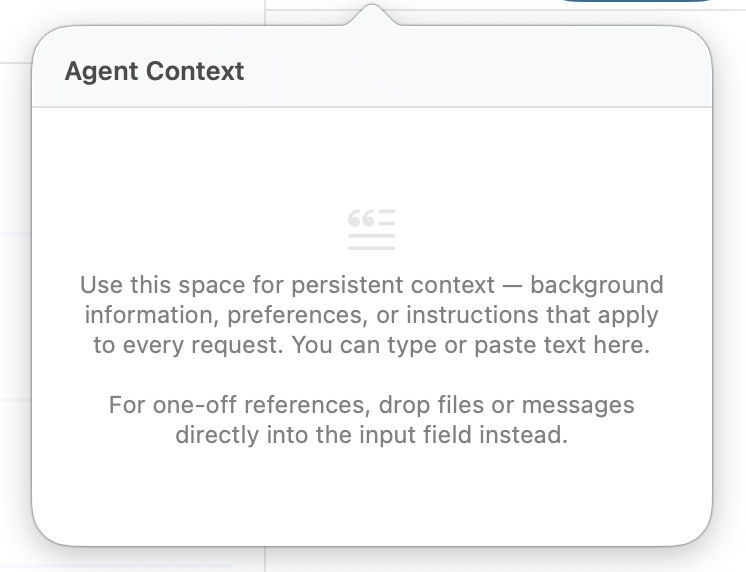
Each conversation has a shared context panel — a place for persistent background information that applies to all agent conversations within it. Open it by clicking the Context button in the agent controls bar.

Tip — Keep context concise. Everything in the context panel is sent with every request, using up part of the model's context window. A few sentences or bullet points is ideal.
Copy context⌘⇧⌥C
Paste context⌘⇧⌥V
Replace context⌘⇧⌃V
The Agent Context panel with placeholder text explaining persistent context

What the agent sees

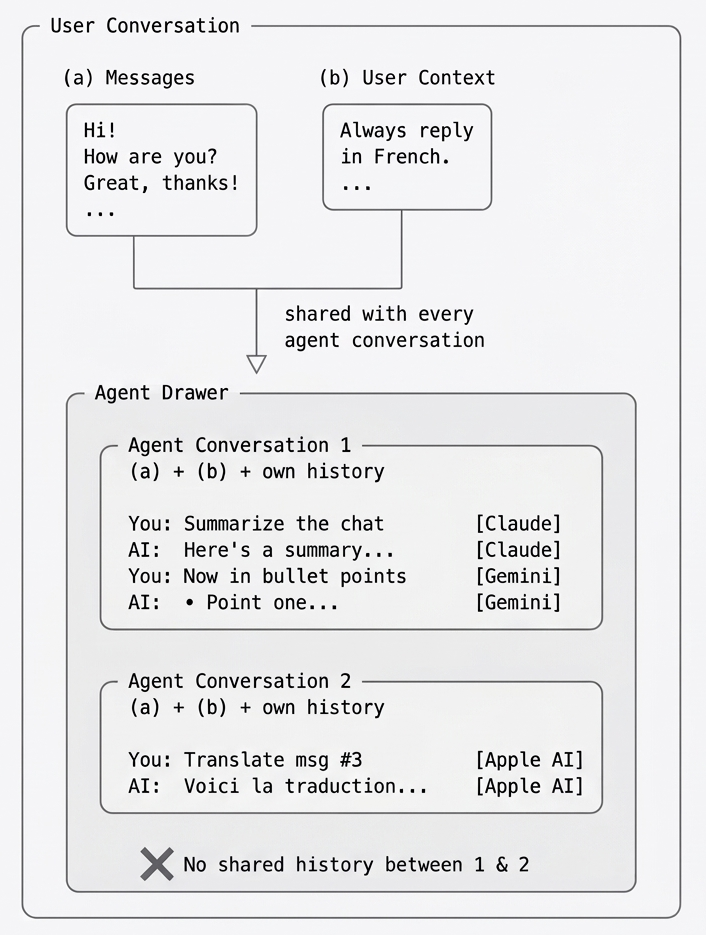
When you send a message, the AI receives three layers of input:

  • Messages — The messages visible in the selected conversation.
  • User Context — The persistent context text you've written for this conversation.
  • Agent conversation history — The back-and-forth within that specific agent conversation.

Agent conversations are isolated from each other — they do not share history.

Diagram showing how user messages and user context flow into the agent drawer, and how each agent conversation is isolated with its own history
Important — When you use a server-based provider (OpenAI, Anthropic, or Gemini), all currently visible messages and any attachments you include are sent to that provider's servers. Review the provider's privacy policy before use. For maximum privacy, use Apple Intelligence or a local model.

Choosing an AI provider

Provider selector showing Apple, Claude, and Gemini

The agent requires at least one LLM provider to be configured. See LLM Provider Setup to connect Apple Intelligence, OpenAI, Anthropic, Gemini, or a local model.

Click a provider pill to open its model menu. Each provider shows the latest model from every family it offers. Blabble automatically tracks the newest release in each family, so you always have access to the latest models without changing any settings.

The provider pill menu showing Haiku, Sonnet, and Opus model options for Claude

Agent Desk

The Agent desk icon in the desks toolbar

The Agentdesk is a dedicated space for AI-powered features that aren't tied to a specific conversation. It contains two types of items:

  • Agent Rules — Scheduled tasks that run automatically on a timer.
  • Agent Conversations — Free-form AI chats that have access to all your messages across every source.

Select the Agent desk in the sidebar to see your rules and conversations. Click the dropdown arrow on the Agent desk pill to create new items.

The Agent desk dropdown showing New Agent Rule and New Agent Conversation

Agent Rules

An Agent Rule runs a prompt on a schedule — for example, “Summarize my messages from the last 12 hours” every morning. The AI processes the prompt with access to the sources you select, and delivers the result via email or iMessage.

Creating an Agent Rule

  1. Switch to the Agent desk and click the dropdown arrow, then choose New Agent Rule.
  2. Toggle Enable This Rule to activate it.
  3. Give the rule a name and write your prompt — this is the question or instruction the AI will process each time the rule fires.
  4. Set the Schedule: choose how often it repeats (e.g. Daily) and the start date and time.
  5. Choose an LLM Provider — the AI model that will process the prompt.
  6. Select which Blabble Sources the AI can search when running this rule. Only messages from the selected sources are included.
  7. Configure Delivery: choose whether results are sent via email, iMessage, or both. Add the email addresses or iMessage handles where results should be delivered.
  8. Click Test This Rule to run it immediately and verify everything works.
Agent Rule settings showing name, prompt, schedule, and LLM provider
Agent Rule settings showing source selection, delivery options, and test button
Important — Agent Rules use AppleScript to deliver results via Mail and Messages. You must grant Blabble Automationpermission in Preferences → Permissions (or System Settings → Privacy & Security → Automation). Without it, the rule can process your prompt but cannot deliver the results.
Tip — Agent Rules need Blabble running to fire. If your Mac goes to sleep, scheduled rules won't run. Enable Prevent Sleep in Preferences → General to keep your Mac awake while Blabble is open.

Agent Conversations

A standalone Agent Conversation is a free-form AI chat that isn't tied to any specific user conversation. It has access to all your messages across every connected source, making it ideal for cross-conversation questions.

Remote Agent

The Agent tab in Blabble Preferences showing Remote Agent settings

The Remote Agentlets you interact with Blabble's AI from your phone. Send an iMessage to yourself and Blabble will detect it, forward the prompt to your selected AI model, and reply back via iMessage. The agent can search, summarize, and answer questions about all your conversations — right from your pocket.

Setting up the Remote Agent

  1. Open Preferences → Agent.
  2. Toggle Enable to turn on the Remote Agent.
  3. Blabble automatically detects your iMessage account. If you use multiple Apple IDs or phone numbers, add them under Additional Handles so Blabble recognizes messages from all your accounts.
  4. Choose the Model that will respond to your remote prompts.

Open iMessage on your iPhone (or any device signed into the same Apple ID) and send a message to yourself. Blabble detects the message, sends it to the AI, and replies in the same conversation. AI replies are marked so they won't be re-processed.

Tip — Only messages you send to yourself are processed. No one else can trigger your agent, and replies stay in your private self-conversation. The agent is read-only — it can search your messages but cannot send messages to other people on your behalf.
Important — The Remote Agent needs Blabble running on your Mac to detect and respond to messages. Enable Prevent Sleep in Preferences → General to keep your Mac awake.